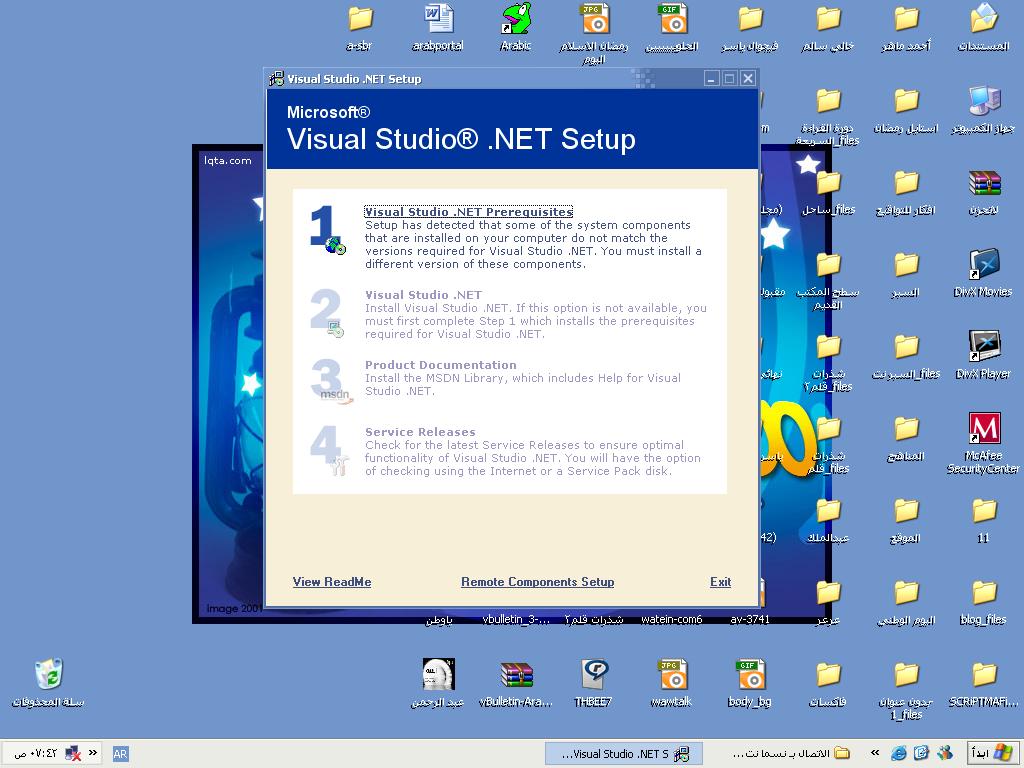
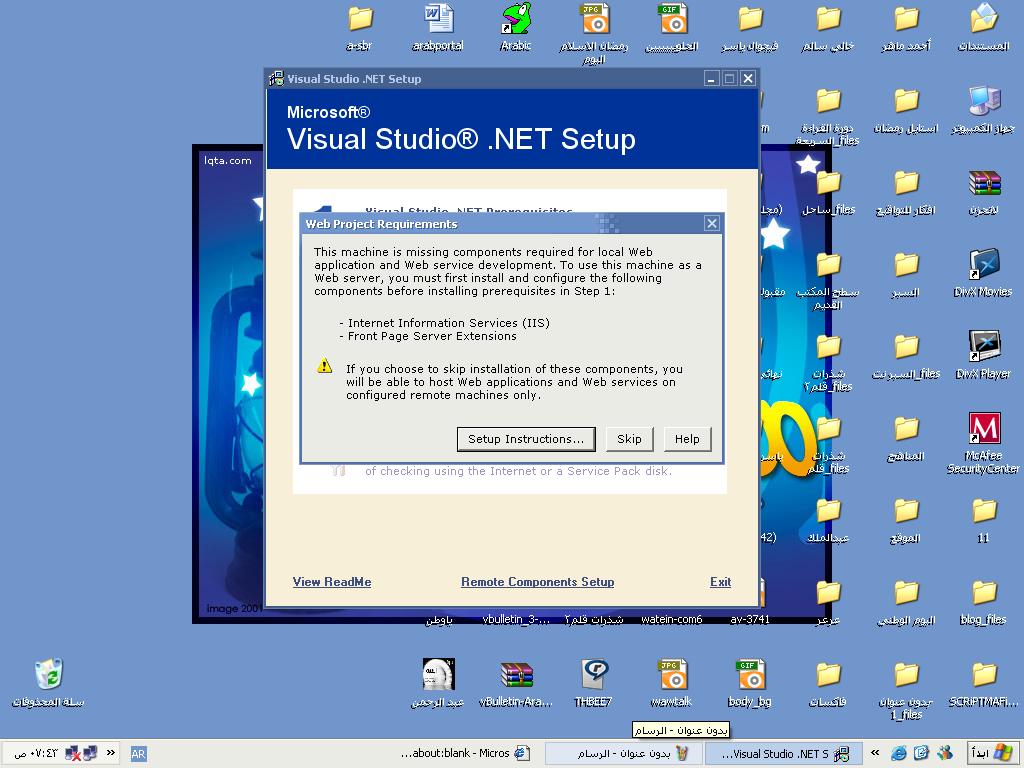
السلام عليكم ورحمة الله وبركاته
سامحوني اخواني اعلم ان سؤالي بدائي جدا لكني واجهتني بعض المشاكل في تنصيب برنامج الدوت نت تظهر لي الصور التالية وثم تظهر لي صفحة انترنت محتواها التالي
Microsoft Visual Studio .NET Prerequisites
Web Project Requirements for Windows XP
If you want to create Web projects on this machine, you must first install additional components. To create Web projects, both Internet Information Services (IIS) and FrontPage Server Extensions (FPSE) must be installed and configured. You can, however, create Web projects on remote machines that have these components installed and configured.
Note: It is recommended that you print or bookmark this page before installing the components listed below. This page does not automatically display after a machine restart.
Securing Your Machine for Installation
Securing Your Machine for Installation on Windows XP
Download and save the latest security updates from http://msdn.microsoft.com/vstudio/security/ to your desktop.
Note: Do not install the security updates now. You will be manually applying these security updates in a later stage of the instructions below. If you have problems, please see your system administrator.
Obtain your Windows operating system CD/DVD.
Note: Please contact your system administrator if you installed the Windows operating system over the network and you do not have the Windows operating system CD/DVD readily available.
Disconnect your machine from ALL network connections.
Note: If you do not disconnect, your machine could be susceptible to viruses between installing the components and applying the latest security updates.
Remove the Visual Studio CD/DVD from your machine now.
Install Internet Information Services (IIS)
To install Internet Information Services on Windows XP
On the Start menu, choose Run.
In the Open dialog box, type appwiz.cpl, and then click OK to open the Add/Remove Programs dialog box; you can also access this dialog box from the Control Panel.
In the Add/Remove Programs dialog box, choose Add/Remove Windows Components on the left side of the dialog box.
In the Windows Component Wizard, check Internet Information Services (IIS).
Choose Next to begin installing IIS.
Click Finish when installation is complete.
Close the Add/Remove Programs dialog box.
Install FrontPage Server Extensions (FPSE)
To install FrontPage Server Extensions on Windows XP
On the Start menu, choose Run.
In the Open dialog box, type appwiz.cpl, and then click OK to open the Add/Remove Programs dialog box.
In the Add/Remove Programs dialog box, choose Add/Remove Windows Components on the left side of the dialog box.
In the Windows Component Wizard, select Internet Information Services (IIS).
With Internet Information Services (IIS) selected, choose Details.
If FrontPage 2000 Server Extensions are not already selected, check the check box.
Click OK to close the Internet Information Services (IIS) box.
Choose Next to begin installing.
After installation completes, click Finish to close the Windows Component Wizard.
Configure FrontPage Server Extensions (FPSE)
To configure FrontPage Server Extensions on Windows XP
On the Start menu, choose Run.
In the Open dialog box, type compmgmt.msc \s, and then click OK to open the Computer Management dialog box.
In the Computer Management dialog box, expand Services and Applications.
Under Services and Applications, expand Internet Information Services.
Under the Internet Information Services, expand Web sites.
Right-click Default Web Site, choose All Tasks, and then choose Configure Server Extensions.
Note: You can skip to Install Security Updates below if the Configure Server Extensions menu command is missing. If the Configure Server Extensions menu command is missing, then FrontPage Server Extensions are already installed and configured.
Choose Next on the first page of the Server Extensions Configuration Wizard.
Choose Yes in the Warning dialog box.
Choose No for configuring the mail server settings, and then choose Next.
Choose Finish.
Install Security Updates
Run the security updates you downloaded in step 1, "Download Security Updates", from your desktop.
Connect to Network
If you disconnected from the network in step 2, "Disconnect Network", you can safely reconnect to the network after applying the security updates.
Return to setup
You are now ready to return to setup. Please re-insert CD1 or the DVD of the Visual Studio product you are installing and run setup.