الفريق العربي للبرمجةأرشيف المنتديات · 2000 – 2023
نسخة أرشيفية للقراءة فقط — التسجيل والمشاركة مغلقان، والمحتوى محفوظ كما كان.

ابي رايك انت وياه

مغلق
بدأه StUd_C في 19 ديسمبر 2003 · 5 رد · 689 مشاهدة · في الأسئلة المجابة
مشاركة: واتساب X فيسبوك تيليجرام
#1 صاحب الموضوع

كيفكم حبايبي ابي اسئلكم عن فيجول ستديو دوت نت وعن مزياها وعن البرنامج يعمل على اي لغه ابي موضوع مختصر عن هذا ممكن :)

ثانين فيه فيجول سي .وسي بلس بلس دوت نت ؟؟

ولو فيه وش الافضل :)

اخر نسخه من الفيجول سي سي بلس بلس كم ؟؟ انا عندي سبعه وتسعين ابي اعرف اخر نسخه عشان اروح اشتريها اللي عندي فيها اشياء ناقصه واجد :9

ولا هنتو والمعذره

#2

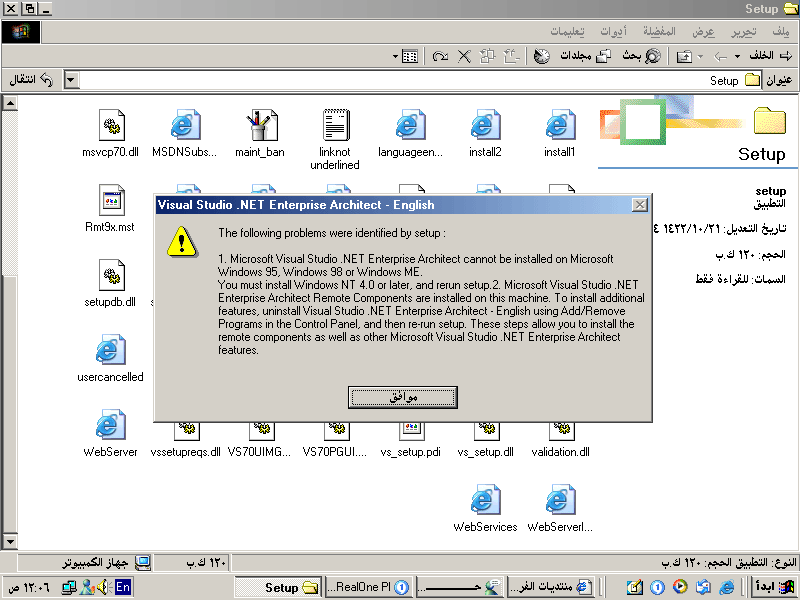
سلام عندي مشكله حملت الفيجول ستديو دوت نت وعيا يحمله مدري ليه مع ان الوندوز حقي ملينوم هل لانه ملينيوم مايقبله مايقبل الا لاكس بي والالفين والان تي وش السوات طيب كيف اشغله على الملينيوم سبع سيديات وشلون احملهن دبرولي الطريقه تكفون :)

#3

و الله يا خوي ،، بودي "إني أساعدك ،، :(

بس إن شاء الله الأخوان ما بيقصروا معاك ،، :)

#4

السلام عليكم,

لا أضن أن هدا سيشتغل على الوندوز 98 أو الملنيوم.

فإدا أردت هدا يجب التوجه نحو 2000 أو اكس بي وأنصحك بهدا الأخير لأن فيما يخص 2000 يلزمك تحميل ملف آخر للأبدايت.

فيما يخص 98 أو الملنيوم يمكنك تثبيت فيه شيء واحد وهو أن تجعله رموت ولكن هدا لن يمكنك من البرمجة.

وفيما يخص التثبيت فهو كالمعتاد فقط يجب أن لا نختار الريموت.

إلى اللقاء.

#5

السلام عليكم ,,

اقتباس
ثانين فيه فيجول سي .وسي بلس بلس دوت نت ؟؟

ولو فيه وش الافضل

بالطبع الافضل هي نسخة الدوت نت ,, لأن بها مزايا اضافية ,, يطول التفصيل في الموضوع .

اقتباس
اخر نسخه من الفيجول سي سي بلس بلس كم ؟؟

آخر نسخة هي 2000 ,, ولاأعتقد أن هيوجد شيء بعدها الا الدوت نت ,,

اقتباس
طيب كيف اشغله على الملينيوم سبع سيديات وشلون احملهن دبرولي الطريقه تكفون

أفضل طريقة للتحميل هي أن تقوم بنسخها للهارد دسك ,, وتقوم بتثبيتها من هناك ,, مع الانتباه الى أنه توجد مجلدات مشتركة في الاسم لكل السيديات ,, لذا عندما تقوم بنسخ السيدي الذي يليه ,, تطلب منه أن يضيف البيانات لنفس الفولدر ذو الاسم المشترك ,,

بالتوفيق ,,

banner_60_468.gif

NOTHING IS IMPOSSIBLE

#6

Remote Components Setup

Remote Components Setup installs components that provide functionality for debugging and analyzing deployed applications. You should install these components using this page if you wish to use this machine as a test machine only. Please read the prerequisites below and then follow the directions to install each component.

Important Note: Visual Studio .NET cannot be installed on a machine with remote components installed from this page, without first uninstalling the remote components. If you wish to install Visual Studio .NET on this machine, you should close this page, return to setup, and then follow steps 1 and 2. The steps above allow you to install these debugging and analysis components as well as other Visual Studio .NET features.

End User License Agreement

BY INSTALLING, COPYING OR OTHERWISE USING THE SOFTWARE AND RELATED DOCUMENTATION YOU AGREE TO BE BOUND BY THE TERMS OF THE END USER LICENSE AGREEMENT FOUND HERE. IF YOU DO NOT AGREE TO THE TERMS OF THIS AGREEMENT, DO NOT INSTALL, COPY OR USE THE SOFTWARE AND CLOSE THIS WINDOW TO ABORT INSTALLATION.

Before Installing Remote Components

Before installing any of these remote components, you must first have Windows Installer 2.0 on your machine. Windows XP already includes Windows Installer 2.0. Windows NT 4.0 requires that Service Pack 6a be installed prior to installing Windows Installer.

To install Service Pack 6a and Windows Installer 2.0 on Windows NT 4.0

Insert the Visual Studio .NET Windows Component Update CD and click OK to ignore the autorun message box that appears with instructions to insert Disk 1.

-or-

Insert the Visual Studio .NET DVD and open the wcu folder.

Open the NTSP6a folder and run sp6i386.exe.

When you have finished installing the Service Pack, open the WindowsInstaller\2.0 folder.

Run instmsiW.exe.

To install Windows Installer 2.0 on Windows 2000, Windows 98, or Windows ME

Insert the Visual Studio .NET Windows Component Update CD and click OK to ignore the autorun message box that appears with instructions to insert Disk 1.

-or-

Insert the Visual Studio .NET DVD and open the wcu folder.

Open the WindowsInstaller\2.0 folder.

On Windows 98 or Windows Me run instmsiA.exe.

-or-

On Windows 2000 run instmsiW.exe.

To Install Visual Studio Analyzer Server

You do not need to install the remote Visual Studio Analyzer Server components in order to install the remote debugging components.

Visual Studio Analyzer Server

This component helps you analyze performance, isolate faults, and understand the structure of your distributed applications. You can use Visual Studio Analyzer with applications and systems built with Visual Studio tools. This component can be installed on Windows NT 4.0 and Windows 98, and later versions of Windows.

Before installing Visual Studio Analyzer Server on Windows 98 and Me

Install Internet Explorer 5.01 or greater.

Insert the Visual Studio .NET Windows Component Update CD and click OK to ignore the autorun message box that appears with instructions to insert Disk 1.

-or-

Insert the Visual Studio .NET DVD and open the WCU folder.

Open the dotNetFramework folder and run dotnetfx.exe.

Download and install DCOM98 for Windows 98 and DCOM98 for Windows 98 configuration utility from http://www.microsoft.com/COM/DCOM/DCOM98/download.asp.

Before installing Visual Studio Analyzer Server on Windows NT 4.0, Windows 2000, and Windows XP

Install Internet Explorer 5.01 or greater.

Insert the Visual Studio .NET Windows Component Update CD and click OK to ignore the autorun message box that appears with instructions to insert Disk 1.

-or-

Insert the Visual Studio .NET DVD and open the WCU folder.

Open the dotNetFramework folder and run dotnetfx.exe.

To install Visual Studio Analyzer Server on all operating systems

Install

After installing Visual Studio Analyzer Server on Windows 98 and Me

Restart your computer.

On the Start menu, choose Settings and then choose Control Panel.

Open Network and then choose the Access Control tab.

Select User-level access control and specify a domain in the Obtain list of users and groups from edit box below.

Click OK.

Run dcomcnfg.exe.

In the dialog box that appears, select the Default security tab.

Select the Enable remote connection check box and then click Edit Default.

Caution: Selecting this option opens a DCOM port on your machine that can be accessed by other users. This can pose a security risk.

In the Access Permissions dialog box, click Add and then add the set of users who you would like to debug on this machine.

Caution: Selecting this option allows users with permissions to access objects on your machine remotely. This can pose a security risk.

To Install Remote Debugging Components

Full Remote Debugging support

The Visual Studio Remote Debugger allows you to set up one or more machines as debugging platforms while another machine is your test platform. Visual Studio Remote Debugger can be installed on Windows NT 4.0 and Windows 98, and later versions of Windows. This component includes the files necessary for SQL Debugging.

This option installs support for Native, Managed, Script, and TSQL debugging.

Caution: Windows 98 and Windows Me machines need to be on a domain.

Note: If you intend to debug only TSQL code, you can pass over the pre-installation steps below and skip to To install full remote debugging support on all operating systems. Otherwise you must install the runtime to ensure debugging of all other languages works. The pre-installation steps below install the Common Language Runtime (CLR).

Before installing full remote debugging on Windows 98 and Me

Install Internet Explorer 5.01 or greater.

Insert the Visual Studio .NET Windows Component Update CD and click OK to ignore the autorun message box that appears with instructions to insert Disk 1.

-or-

Insert the Visual Studio .NET DVD and open the WCU folder.

Open the dotNetFramework folder and run dotnetfx.exe.

Download and install DCOM98 for Windows 98 and DCOM98 for Windows 98 configuration utility from http://www.microsoft.com/COM/DCOM/DCOM98/download.asp.

Before installing full remote debugging on Windows NT 4.0, Windows 2000, and Windows XP

Install Internet Explorer 5.01 or greater.

Insert the Visual Studio .NET Windows Component Update CD and click OK to ignore the autorun message box that appears with instructions to insert Disk 1.

-or-

Insert the Visual Studio .NET DVD and open the WCU folder.

Open the dotNetFramework folder and run dotnetfx.exe.

To install full remote debugging on all operating systems

Install Full

After installing full remote debugging on Windows 98 and Me

Restart your computer.

On the Start menu, choose Settings and then choose Control Panel.

Open Network and then choose the Access Control tab.

Select User-level access control and specify a domain in the Obtain list of users and groups from edit box below.

Click OK.

Run dcomcnfg.exe.

In the dialog box that appears, select the Default security tab.

Select the Enable remote connection check box and then click Edit Default.

Caution: Selecting this option opens a DCOM port on your machine that can be accessed by other users. This can pose a security risk.

In the Access Permissions dialog box, click Add and then add the set of users who you would like to debug on this machine.

Caution: Selecting this option allows users with permissions to access objects on your machine remotely. This can pose a security risk.

Native-only Debugging support

The Visual Studio Remote Debugger allows you to set up one or more machines as debugging platforms while another machine is your test platform. Visual Studio Remote Debugger can be installed on Windows NT 4.0 and Windows 98, and later versions of Windows.

To install native-only debugging on all operating systems

Install Native

Uninstalling Remote Components

Using the steps below uninstalls all Remote Components.

To uninstall all Remote Components

Choose the Start menu, Settings, Control Panel.

Open Add/Remove Programs.

In the Add/Remove Programs dialog box, choose Visual Studio .NET.

Click Remove.

طريقه التركيب وكلما ضغطت على السي تب تطلع لي هالصوره

post-14-1071955731_thumb.gif

هذا الموضوع مغلق.

مواضيع مشابهة