الفريق العربي للبرمجةأرشيف المنتديات · 2000 – 2023
نسخة أرشيفية للقراءة فقط — التسجيل والمشاركة مغلقان، والمحتوى محفوظ كما كان.

توصيف حقل فى تقارير Reportviewer

بدأه أسامة عبد السلام المسيدى في 22 سبتمبر 2011 · 5 رد · 1,716 مشاهدة · في تصميم وبرمجة التقارير
مشاركة: واتساب X فيسبوك تيليجرام
#1 صاحب الموضوع

الاخوه الافاضل

لو معاى حقل وهذا الحقل وضعته على تقرير من تقارير Reportviewer فعند تشغيل التقرير لوفرضنا مثلا ان هذا الحقل يحتوى على 40 صف ومحتوى الصفحه مثلا سيكون 10 صفوف معنى ذلك ان التقرير سيظهر فى 4 صفحات وهذا ماليس اطلبه اريد ان يظهر 40 صف فى صفحه واحده عن طريق تكرار الحقل فى الصفحه اى انه ينهى 10 صفوف ثم يبدأ فى ملىء العمود الثانى بعشرة صفوف أخرى الى ان يتم 40 صف فى صفحه واحده

ماهو الكود الذى يعطى هذا الوصف

تقبلوا التحية
#2

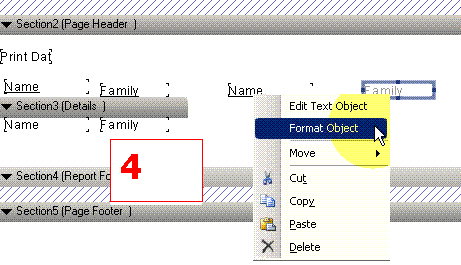
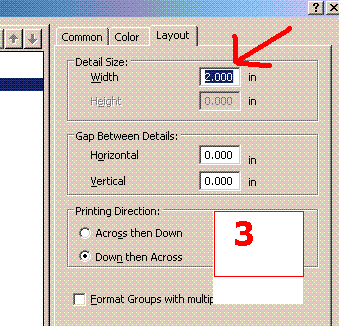
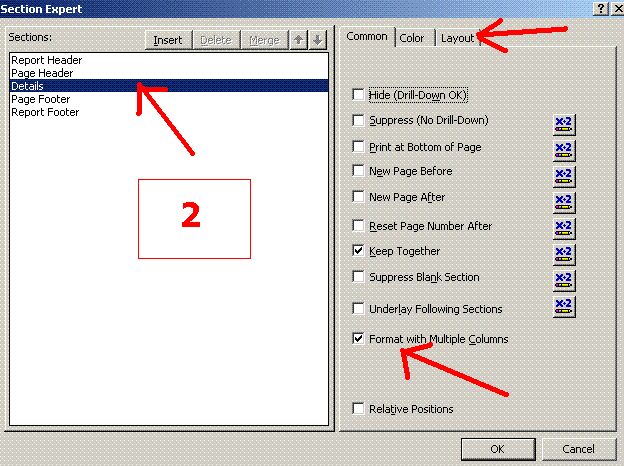
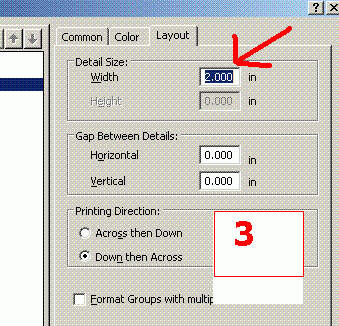
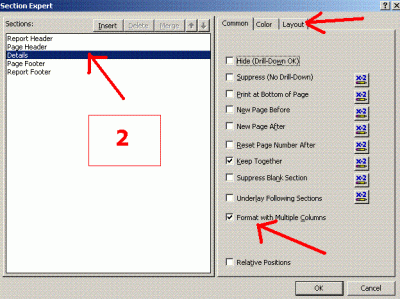
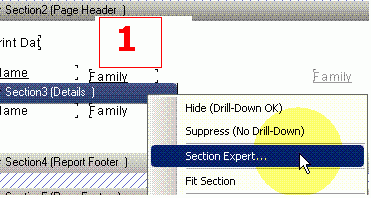
السلام عليكم ... لجعل التقرير متعدد الأعمدة ... نضغط باليمين على Section3 (Details ) ثم من القائمة نأخذ Section Expert و نضع الــ checkbox الذي اسمه Format with multiple Columns فيظهر Tab جديد اسمه Layout نذهب إليه ثم نضع عرض العمود بالإنش فيكون عدد الأعمدة مساويا لعرض التقرير مقسوما على عرض العمود الواحد و هكذا تكون حلت المشكلة الأولى و لكن لو كان للأعمدة عنوان في قسم الــ Page Header فأنه لا يتم تكرارهم , و يوجد حل (إلتفافي) على الموضوع كمايلي :

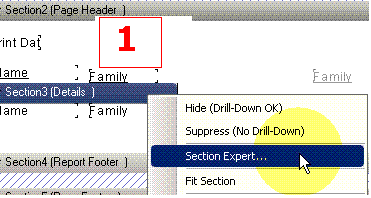
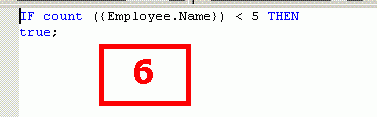
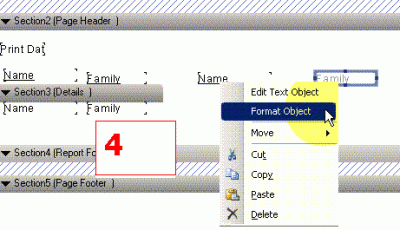
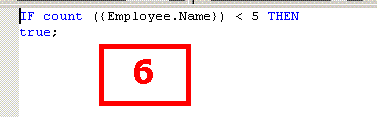
لنفرض أن التقرير فية ثلاثة أعمدة ... نضع الــ Textbox الذي يحوي عنوان العمود في المكان المناسب له (بالتجريب) ... و هكذا تحل المشكلة .. و تظهر مشكلة أخرى هي أنه عندما يكوم هناك بيانات قليلة فإن عمود واحد يكفي لها و يجب علينا أن نقوم بإخفاء عنوان الأعمدة الثاني و الثالث كمايلي : يالضغط على الــ TextBox ثم Format Object ثم نضع Check على Supress ثم نختار محرر الصيغة بالضغط على x+2 ثم نكتب الصيغة التالية :

IF count ({Employee.Name}) < 5 THEN
true

;

أي أن عنوان العمود الثاني سيكون Suppressed مختفي إذا كان عدد السجلات أضغر من خمسة و كذلك نفعل نفس الأمر مع العمود الثالث و لكن نجعله Suppressed مختفي إذا كان عدد السجلات أصغر من 10 مثلا (بالتجريب).

و بانتظار رد الخبراء ...

post-94677-095331600 1316762829_thumb.gi

post-94677-091931000 1316762836_thumb.gi

post-94677-032984900 1316762854_thumb.gi

post-94677-050757100 1316762861_thumb.gi

post-94677-022045000 1316762872_thumb.gi

post-94677-090511300 1316762879_thumb.gi

المرفقات
6.GIF5.GIF4.GIF3.GIF2.GIF1.GIF

لا إله إلا الله ... محمد رسول الله

لو كانت مشاركتي مفيدة و تريد تشجيعي على المزيد من العطاء , فضلا قم بتقييم المشاركة

المعرًف القديم : houssam11350_11350

من مواضيعي : ArabGenCode : مولد كود و إجراءات مخزنة و واجهات لجداول سيكوال سيرفر

#3

الف شكر أخى الكريم على الرد ولكن هذا الحل باستخدام Crystal Report ولكنى باستخدم Report Viewer وهو نوع آخر من التقارير من داخل بيئة الفيجوال استوديو يختلف فى عمله عن Crystal Report فاتمنى ان يكون الحل باستخدام هذه التقارير اعنى Report viewer

تقبل التحيه و مشكور على هذا المجهود

#4

توصلت للحل وهو من help لل MSDN وهذه الخطوات هى كالاتى :-

#

Create a report and a dataset that returns two fields for each row. For the purposes of this example, you can use the following query to retrieve two fields from the AdventureWorks sample database:

other

Copy

Select distinct Lastname, Firstname from Person.Contact Order by Lastname

# Set report properties to specify the number of columns, margins, and padding. In this example, specify 2 columns for the report. To view instructions about adding columns to a report, see How to: Specify Multiple Columns in a Report (Report Designer).

# From the Toolbox, drag a List onto the report design surface.

# Position the List so that it is at the top of the report. This removes extra whitespace from the report and ensures that both columns on the page are aligned with each other when the report is rendered.

# Drag a Table onto the List. A Table is useful because it provides a uniform arrangement for fields in repeating rows of data, but you can use any kind of data region that gives you the report layout you are looking for.

# Drag the Lastname and Firstname fields from the dataset onto the Details row in the table.

# Delete the Footer row and the third column.

# Resize the page layout to remove extra whitespace and to bring the second column into view. The report layout should look similar to the following image:

Shows multi-column report layout

When you define more than one column in a report, Report Designer calculates the width of the columns in the report, the width of the report, and the width of the space between columns based on the number of columns. It then displays a decreased design surface so that you can place report items on the report that will fit within the column. Note that the layout of the entire report must be placed on the decreased design surface. Additional columns are displayed so that you can verify that the number of columns you defined will fit the page size dimension. You can adjust page size, padding, and margins to fit more columns on the page.

# Create a group expression on the List and specify page breaks to force data onto the next column.

1. Right-click the List and select Properties.

2. In List Properties, on the General tab, click Edit Details Group.

3. In the Grouping and Sorting Properties dialog box, on the General tab, type an expression to limit the number of rows that appear in each column. In this expression, twenty rows are allowed in each column:

other

Copy

=Ceiling(RowNumber(Nothing)/20)

4. Click Page break at end.

5. Click OK to close the Grouping and Sorting Properties dialog box. Click OK again to close the List Properties dialog box.

# Preview the report, and then export it to PDF or IMAGE output.

تقبلوا التحية

#5

الاخ houssam11350_11350

بالنسبة للتقسيم الى عدة اعمده تمام لن اذا ابغى الاعمده تكون من اليمين الى اليسار كيف هل عندك طريقة معينة يعني يبدأ من جهة اليمين التعبئة

سأصبر حتى يعجز الصبرُ عن صبري

وسأصبر حتى يأذن الله في أمري

وسأصبر حتى يعلم الصبرُ أني صبرتُ على شيئاٍ أمرُ من الصبرِ

#6

السلام عليكم ..

النقاش أصبح هنا ..

/index.php?showtopic=250906&view=findpost&p=1240297

لا إله إلا الله ... محمد رسول الله

لو كانت مشاركتي مفيدة و تريد تشجيعي على المزيد من العطاء , فضلا قم بتقييم المشاركة

المعرًف القديم : houssam11350_11350

من مواضيعي : ArabGenCode : مولد كود و إجراءات مخزنة و واجهات لجداول سيكوال سيرفر

مواضيع مشابهة