السلامــــ عليكمـــــــ ورحمهـــــ اللهــــــــ وبركاتهــــــــــــــــــــــــــــ
عيدكم مبارك وتقبل الله طاعتكم
نرجع للموضوع :
انا ابي اغير شكل الزر
ابيه مدور كيف ..............؟
السلامــــ عليكمـــــــ ورحمهـــــ اللهــــــــ وبركاتهــــــــــــــــــــــــــــ
عيدكم مبارك وتقبل الله طاعتكم
نرجع للموضوع :
انا ابي اغير شكل الزر
ابيه مدور كيف ..............؟
لا أدري كيف ولست متأكدا من امكانية ذلك ...
يمكنك استخداك ال PictureBox عوض ذلك حيث قم بتصميم شكل الزر كما تجب وادراجه على شكل صورة تقوم بعمل زر معين عند الضغط عليها
تحياتي
تم تعديل هذه المشاركة بواسطة OricalcosZy في 13 سبتمبر 2010 في 19:48
Zefri Yahya - ArabTeam 2000

السلام عليكم
اخي العملية ممكنة .. وعن طريقين
الاول // باستخدام الادوات الجاهزة التي تمكنك من ادراج زر معين غير الزر الخاص بالفيجول ستوديو .. ومن ضمن خصائص هذه الادوات وجود خاصية تغيير الشكل الى بيضوي او دائري ..
والان ليس لدي منها كرابط .. ولكن ابحث عنها ستجدها بكثرة ضمن الاستايلات ..
الثاني :: عن طريق كودات مفتوحة المصدر . مثل الاداة Elliptical/Circular Button والمنشورة على الموقع CodeProject ..
وهذه صورتها
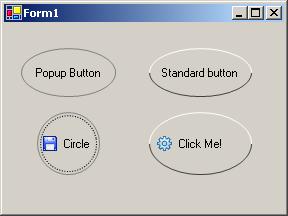
حمل من هنا
بعد ان تقوم بالتحميل .. اضف المكتبة الى البرنامج عن طريق الذهاب الى
Tools -> Choose ToolBox Items
ثم اختر المكتبة التي قمت بتحميلها عن طريق الزر Browse لكي تستعرض ملفات الجهاز ..
بعد ذلك ستجد ان الاداة قد اضيفت الى صندوق الادوات ..
اختر الاداة وانزلها على الفورم .. وهي ستكون باول شكل بيضوي .. ولكي تجعلها دائري اذهب الى الخاصية Size واجعلها متساوية الطول والعرض مثلا 75 , 75 وغير ما تشاء فيها ..
اعتقد ان الامر لايحتاج الى صور للتوضيح .. اذا لم تستطع اضافة الاداة .. اخبرني كي اقوم برفع صور للطريقة ..
تحياتي العطرة ..
تم تعديل هذه المشاركة بواسطة سنان محمد صالح في 14 سبتمبر 2010 في 05:11
يَارَبُ إِن ضَاقَت قُلُوُب الْنَّاسٍ عَنْ مّافِي .. مِنْ خَيْرٍٍ فَعَفْوكَ لَا يَضِيْقْ ..
أخي الفاضل
يمكنك استخدام الكلاس التالي قي مشروعك فهو عبارة عن باتون دائري بشكل لطيف
Imports System.Drawing.Drawing2D

Public Class RibbonButton
    Inherits Control

    Private DarkColor As Color
    Private LightColor As Color
    Private rect As Rectangle
    Private Path As GraphicsPath
    Private m_state As ButtonState = ButtonState.Normal

    Public Sub New()

        Me.SetStyle(ControlStyles.OptimizedDoubleBuffer, True)
        Me.SetStyle(ControlStyles.AllPaintingInWmPaint, True)
        Me.SetStyle(ControlStyles.UserPaint, True)
        Me.UpdateStyles()

        Me.SetNormalstate()
        Me.SetGraphicsData()

    End Sub

    Protected Overrides ReadOnly Property DefaultSize() As System.Drawing.Size
        Get
            Return New Size(50, 50)
        End Get
    End Property

    Private Sub SetGraphicsData()
        Path = New GraphicsPath()
        Path.AddEllipse(Me.ClientRectangle)
        Dim rgn As New Region(Path)
        Me.Region = rgn
        rect = New Rectangle(Me.ClientRectangle.X + 1, Me.ClientRectangle.Y + 1, Me.ClientRectangle.Width - 2, Me.ClientRectangle.Height - 2)
    End Sub

    Protected Overrides Sub OnPaint(ByVal e As System.Windows.Forms.PaintEventArgs)
        MyBase.OnPaint(e)

        Select Case m_state

            Case ButtonState.Default, ButtonState.Disabled, ButtonState.Normal
                SetNormalstate()
                DrawGlowRibbon(e.Graphics, rect, DarkColor, LightColor)

                Exit Select

            Case ButtonState.Hot
                SetHoverstate()
                DrawGlowRibbon(e.Graphics, rect, DarkColor, LightColor)
                Exit Select
            Case ButtonState.Pressed

                SetPressedState()
                DrawGlowRibbon(e.Graphics, rect, DarkColor, LightColor)
        End Select

    End Sub

    Protected Overrides Sub OnMouseEnter(ByVal e As System.EventArgs)
        MyBase.OnMouseEnter(e)
        m_state = ButtonState.Hot
        Invalidate()
    End Sub

    Protected Overrides Sub OnMouseDown(ByVal e As System.Windows.Forms.MouseEventArgs)
        MyBase.OnMouseDown(e)

        m_state = ButtonState.Pressed
        Invalidate()

    End Sub

    Protected Overrides Sub OnMouseUp(ByVal e As System.Windows.Forms.MouseEventArgs)
        MyBase.OnMouseUp(e)
        OnMouseEnter(e)
    End Sub

    Protected Overrides Sub OnMouseMove(ByVal e As System.Windows.Forms.MouseEventArgs)
        MyBase.OnMouseMove(e)

        If (e.Button And MouseButtons.Left) = MouseButtons.Left And Not rect.Contains(e.Location) And m_state = ButtonState.Pressed Then
            OnMouseLeave(e)
        End If
    End Sub

    Protected Overrides Sub OnMouseLeave(ByVal e As System.EventArgs)
        MyBase.OnMouseLeave(e)

        m_state = ButtonState.Default
        Invalidate()

    End Sub

    Protected Overrides Sub OnResize(ByVal e As System.EventArgs)
        MyBase.OnResize(e)
        SetGraphicsData()
        Invalidate()
    End Sub

    Protected Overrides Sub OnSizeChanged(ByVal e As EventArgs)
        MyBase.OnSizeChanged(e)
        SetGraphicsData()
    End Sub

    Private Sub DrawGlowRibbon(ByVal g As Graphics, ByVal rect As Rectangle, ByVal darkColor As Color, ByVal lightColor As Color)

        Dim mode As SmoothingMode = g.SmoothingMode
        g.SmoothingMode = SmoothingMode.AntiAlias

        Dim darkRatio As Integer = 16
        Dim WhiteColor As Color = Color.White

        Dim sigmaBlend As New Blend
        sigmaBlend.Factors = New Single() {0.0F, 0.4F, 0.8F, 1.0F}
        sigmaBlend.Positions = New Single() {0.0F, 0.3F, 0.4F, 1.0F}

        Dim scale As SizeF = New SizeF(CSng(rect.Width / 100), CSng(rect.Height / 100))
        Dim darkerColor As Color = darkColor

        Dim darkerColorAlpha As Integer = darkerColor.A
        Dim darkerColorRed As Integer = darkerColor.R - CInt(((darkerColor.R) / 100) * darkRatio)
        Dim darkerColorGreen As Integer = darkerColor.G - CInt(((darkerColor.G) / 100) * darkRatio)
        Dim darkerColorBlue As Integer = darkerColor.B - CInt(((darkerColor.B) / 100) * darkRatio)
        Dim glowColor As Color = Color.FromArgb(darkerColorAlpha, darkerColorRed, darkerColorGreen, darkerColorBlue)

        Using Path As Drawing2D.GraphicsPath = New Drawing2D.GraphicsPath()
            Path.AddEllipse(rect)
            Dim pgb As New Drawing2D.PathGradientBrush(Path)
            pgb.CenterPoint = New PointF(rect.Left + (rect.Width / 2), rect.Bottom + (33 * scale.Height))
            pgb.CenterColor = Color.FromArgb(255, lightColor)
            pgb.SetSigmaBellShape(0.85)
            If darkerColor.GetBrightness >= 0.3 Then
                darkerColor = glowColor
            End If
            pgb.SurroundColors = New Color() {Color.FromArgb(255, darkerColor)}
            g.FillEllipse(pgb, rect)
        End Using

        Using Path As Drawing2D.GraphicsPath = New Drawing2D.GraphicsPath()
            Path.AddArc(rect, 180, 180)
            Using p As Pen = New Pen(glowColor)
                Using lgb As New LinearGradientBrush(Path.GetBounds(), Color.FromArgb(64, WhiteColor), Color.FromArgb(84, WhiteColor), LinearGradientMode.Vertical)
                    lgb.Blend = sigmaBlend
                    g.FillPath(lgb, Path)
                End Using
                g.DrawPath(p, Path)
            End Using
        End Using

        Dim blender As Drawing2D.Blend = New Drawing2D.Blend()
        blender.Positions = New Single() {0, 0.9, 1}
        blender.Factors = New Single() {0, 1, 1}

        Dim sweepRectangle As Rectangle = rect
        sweepRectangle.Height -= (rect.Height / 2)
        sweepRectangle.Inflate(-16 * scale.Width, -3 * scale.Height)
        Using lgb As New Drawing2D.LinearGradientBrush(sweepRectangle, WhiteColor, Color.Empty, 90, True)
            sweepRectangle.Height -= scale.Height / 2
            lgb.Blend = blender
            g.FillEllipse(lgb, sweepRectangle)
        End Using

        Using borderPen As New Pen(darkerColor, 2)
            Dim borderRect As Rectangle = rect
            g.DrawEllipse(borderPen, borderRect)
        End Using

        g.SmoothingMode = mode
    End Sub

    Private Sub SetNormalstate()
        DarkColor = Color.Blue
        LightColor = Color.Cyan
    End Sub

    Private Sub SetHoverstate()
        DarkColor = Color.Maroon
        LightColor = Color.LightYellow
    End Sub

    Private Sub SetPressedState()
        DarkColor = Color.DarkOrange
        LightColor = Color.Yellow
    End Sub

#Region " Enum "

    <Flags()> _
    Private Enum ButtonState
        Normal = &H0
        Hot = &H1
        Pressed = &H2
        Disabled = &H4
        [Default] = &H8
    End Enum

#End Region

End Class
لا تنسي أن تقوم بعمل Build للكلاس وبعدها ستجد نسخة من الباتون في ToolBox ويمكنك حينها أن تضعه في الفورم وتستخدمه كيفما يحلو لك
بالتأكيد لو كانت لديك دراية كافية بتطوير الكونترول ستستطيع أن تفعل الكثير بهذا الكلاس
تقبل تحياتي
أخوك عمر
مشكووووووووووووووووووووووووووورين بس شلون عن Microsoft Expression Blend
اقتباسبس شلون عن Microsoft Expression Blend
اخي هنا ستدخل في تعقيدات الWPF وال XMAL .. واعتقد (( و لا تزعل مني )) مستواك بعيد جدا عنها ..
هي جميلة وقوية جدا .. ولكن تحتاج لكثير من المعلومات قبل ذلك ..
صحيح انها مجرد تصميم عادي وتدمجها مع الفيجول استوديو .. ولكن هناك اشياء كثيرة تحتاج لدراستها
يَارَبُ إِن ضَاقَت قُلُوُب الْنَّاسٍ عَنْ مّافِي .. مِنْ خَيْرٍٍ فَعَفْوكَ لَا يَضِيْقْ ..
ممكن عن طريق تجاوز الطريقة Paint للزر ورسم الزر من جديد باستخدام أوامر GDI ابحث في المشاركات القديمة هناك سؤال مماثل قمت بالإجابة عنه موجود فيه مثال بالكود عن هذه الطريقة
عن عائشة رضي الله عنها أن النبي صلى الله عليه وسلم قال: إن الله يحب إذا عمل أحدكم عملا أن يتقنه
نعيب زماننا والعيب فينا ... وما لزماننا عيب سوانا
ونهجو ذا الزمان بغير ذنب ... ولو نطق الزمان لنا هجانا
محمد سامر أبو سلو
المتواجدون خلال آخر ساعة · يتحدّث كل ٣٠ ثانية
جارٍ التحقق من المتواجدين…